Talk and listen
Say “Hey Orb”, click it or press your shortcut. It answers out loud and keeps listening for a few seconds, so you can just reply. Interrupt it any time.
Orb by Orbience
Say “Hey Orb” and talk: it answers like a friend, and it actually does things on your computer.
What it does
A small dark sphere with two glowing eyes sits in the corner of your screen, watches your mouse and reacts to you. Ask, and it gets on with it.
Say “Hey Orb”, click it or press your shortcut. It answers out loud and keeps listening for a few seconds, so you can just reply. Interrupt it any time.
Under a second and no AI needed, right on your computer.
“Where’s my CV?” Orb opens the folder, flies over and points at it.
Type in any app and say “fix my grammar”, “make this professional” or “make it shorter”. Orb rewrites the box. “Undo that” brings yours back.
Show me how
“Where’s the save button?” Orb flies over and puts a glowing ring around it. “Show me how to add a column in Excel” starts a walkthrough: Orb flies to each thing to click, waits for you, then moves to the next. Or say “just do it”.
Fast and private where it can be
Hearing “Hey Orb”, understanding what you say and quick commands all happen on your computer. Only real questions go to an AI, under your own account.
A friend, not a robot
It remembers you, has feelings and celebrates with you. Shake the mouse around it and it gets dizzy; poke it and it gets annoyed; pet it and it blushes.
Try the buttons, or press Orb itself.
Its eyes and light change with what Orb is doing: calm when idle, bright while it listens, warm amber while it thinks, a sound wave while it talks.

Idle
Here and calm

Listening
Taller eyes, a bright glow

Thinking
Warm amber, a ring orbits it

Talking
A sound wave runs round it
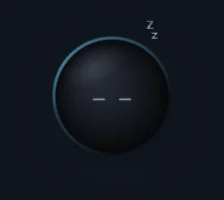
Asleep
Do not disturb: eyes shut
Say “Hey Orb”, then any of these. It understands spelling slips and half sentences too.
Remembers and reminds
Memory, a diary, reminders, routines, and reminders tied to what you do: “when I open Teams, remind me to send the report”.
Sees your screen when you ask
“What’s this error?” Circle to ask: draw around anything and ask about it. Draw to teach: it marks up your screen as it explains.
Thinks harder in the background
Research reports with sources while you carry on, and “ask all three”: Claude, ChatGPT and Gemini answer at once.
Tell me when
The download finishes, a new message arrives and who it’s from, the battery is low, the internet’s back.
Reply like me
“Reply to Sam” writes a reply in your own style and puts it in the box for you to check. It never sends by itself.
Your way
Shortcuts for everything, hold to talk on a mouse button, and you choose which AI handles chatting, actions, research and writing.
Installs apps by voice
“Install VLC” finds it in Windows’ own app catalogue, says exactly what it found, and installs only on your yes. “Uninstall Discord” works too.
Tells you when the render’s done
After Effects, Premiere Pro, Media Encoder, Blender, Cinema 4D and DaVinci Resolve, with no plugin: “Your render is done. It took 42 minutes.”
Gmail, Drive and Calendar
Sign in with Google once, then “check my email”, “upload that to my Drive” or “what’s on my calendar?”. Sending and adding events always ask first.
Command center
A full-screen view of the time, your computer’s health, today’s reminders and what Orb is doing.
Phone remote
Talk to Orb from your phone on the same Wi-Fi.
“Orb, are you okay?”
It checks itself (internet, AIs, voice, microphone) and tells you what’s wrong in plain words.
Getting started
One installer, a short setup with Orb itself, then just talk.
One installer. Windows may show a SmartScreen warning: choose More info, then Run anyway.
Your microphone, signing in to at least one AI, a little about you, its voice and look, and a short tour.
To see the tour again, say “Orb, show me around”.
At least one of these AI subscriptions, which Orb uses through its own official app.
Change any of them, or add your own, in the control panel under Shortcuts.
| Shortcut | Does |
|---|---|
| Ctrl+Alt+Z | Talk to Orb |
| Ctrl+Alt+X | Stop |
| Ctrl+Alt+S | Sleep and wake up |
| Ctrl+Alt+F | Fix my text |
| Ctrl+Alt+D | Dictation on and off |
| Ctrl+Alt+C | Circle to ask |
| Ctrl+Alt+H | Command center |
No reviews yet: Orb is new.
Using it? Tell us at hello@orbience.com.
Example layout, not a real review
A customer’s own words about Orb go here, unedited apart from length. This card appears only in the preview build, so you can see the layout before the first real review arrives.
The first public version of Orb: a voice assistant with a face for Windows that thinks with the AI subscription you may already have and does real things on your computer.
Anything else: hello@orbience.com.
Orb thinks with the AI you may already pay for: Claude, ChatGPT or Gemini, through their official programs and your own account. No API keys and nothing extra to pay, and many things work with no AI at all.
It understands English, Urdu and Hindi, and answers in English, or in Urdu or Hindi if you prefer.
No. Orb asks before sending messages, deleting, shutting down or anything that can’t be undone, never types into password boxes, and never sends a message by itself.
You choose which AI handles chatting, computer actions, research and writing. If one is busy or out of usage, another takes over.
Say “go to sleep” or “do not disturb for an hour”. Orb shuts its eyes and stays quiet; when you wake it, it tells you what came up.
Orb’s price and download are on the way. Write to hello@orbience.com and we’ll tell you when it’s ready.
Questions about a product, ideas, press, or something that didn’t work: write to us.